The reviewer app for students & teachers

Turn the notes you're already reading into review cards and exams.

Paste your handouts, modules, or reviewer notes. NoteBlend finds the terms and definitions, shows you what it skipped, and gets you practicing — or printing a quiz — in minutes.

Free 7-day trial · Opens in your browser · No sign-up. Install it to use offline

  • Offline
  • Private
  • Rule-based
  • No AI
  • No account

who it's for

Studying from notes shouldn't mean typing them twice.

The notes are already in front of you. NoteBlend handles the boring part — copying, formatting, splitting terms from definitions — so your time goes to actually reviewing.

Students & reviewees

“I have the handouts. Turning them into flashcards takes the whole night.”

  • Paste a module or reviewer and get cards in seconds
  • 11 ways to practice, from flashcards to identification
  • Mix a whole subject together for board-exam style review
  • Works offline, even on weak Wi-Fi or low mobile data
Teachers & tutors

“A 50-item quiz means typing every question, every choice, and the answer key.”

  • Paste your lesson notes and print an exam in minutes
  • Multiple Choice, Identification, True or False, and more
  • Set A & B versions, answer keys, and answer sheets
  • Download as a Word file to edit before printing
Careful learners

“AI tools can invent or bend the meaning I'll be tested on.”

  • Clear rules, not AI — you see every pair it found
  • Lines it isn't sure about are shown, never guessed
  • Edit any card; the meaning stays yours
  • Your notes never leave your device

how it works

Paste. Check. Blend. Practice.

Four steps, no setup. Create a subject, add a topic, and you're ready.

  1. 1

    Paste your notes

    Copy from a handout, PDF, website, or an AI answer, and paste it into a topic's Source Notes.

  2. 2

    Check what it found

    Highlights show each term it found. Skipped Content lists everything it didn't use, so nothing goes missing.

  3. 3

    Blend into cards

    One tap turns the pairs into review cards. Fix a skipped line with Add, or edit any card by hand.

  4. 4

    Practice or print

    Pick one of 11 practice modes, or turn the topic into a printable exam with an answer key.

What blends best

NoteBlend reads the way review notes are usually written. Most notes work as they are — in our tests it found about 9 out of 10 pairs. Long paragraphs may need a little help, and that's normal: skipped lines are one tap away from becoming cards.

Structured notes blend best. You can fix anything.

  • Term: Definition
  • Term - Definition
  • Term -> Definition
  • Term | Definition
  • Q> Question A> Answer
  • Short heading + paragraph below

practice

11 ways to test yourself.

Pick the style that matches your exam. Each one uses the same cards — no extra setup.

  • Index Card

    Flip between term and definition. Works with any number of cards.

  • Two Choice

    Read the definition and pick the right term from two.

  • Multiple Choice

    The same idea with four options, like a real exam.

  • Two or Multiple

    Two-option and four-option questions, mixed together.

  • True or False

    Decide if the term really matches the definition.

  • Input Terms

    Read the definition and type the term — an identification test.

  • Input Definition

    See the term and write the definition in your own words.

  • Mix Inputs

    Typing questions in both directions, mixed.

  • Match Column

    Match each term with its lettered definition.

  • Enumeration

    List every item that belongs to a group.

  • Classification

    Sort items into their categories, like Cockatiel → Bird.

Whole-subject review. Practice every topic at once, in order or fully mixed.

Scores you can see. Session History and stats track how you're improving.

Hide and recall. Hide terms or definitions on your cards and quiz yourself.

for teachers

Your quiz, ready to photocopy.

Paste the lesson notes you already have. NoteBlend turns any topic into a printed exam with a proper header, numbered items, and the answer key on separate pages.

  • Six exam types: Multiple Choice, Identification, True or False, Match Column, Enumeration, and Classification
  • Exam Builder: combine types into one paper — Test I, Test II, Test III — under your own header
  • Set A & B: two versions with shuffled question order
  • Shade-the-circle answer sheets with a key you lay beside them — no scanner needed
  • Word file download you can edit and reuse as a template

Printing exams comes with a Full Access key, and you can try it free during the 7-day trial.

tap to zoom

why no ai

The middle path: less typing, still your thinking.

Making cards by hand is slow. Letting AI make them is fast, but you stop checking the meaning. NoteBlend sits in between: it does the formatting, and you decide what's right.

Making cards by hand AI flashcard tools NoteBlend
Speed Slow — every card typed Fast Fast with structured notes
Accuracy Yours May invent or oversimplify Your words, unchanged
What you see Everything Only the result Every pair found and every line skipped
Privacy Depends on the app Notes uploaded to a server Stays on your device
Internet Usually optional Always needed Works offline

A study tool that helps you think — not skip thinking.

made for phones

Review anywhere — even with no signal.

NoteBlend runs in your browser on Android, iPhone, iPad, and computers. Add it to your home screen and it opens full screen like a regular app.

  • Works offline

    Once it's installed, it runs without internet — on the jeep, in class, or with no load left.

  • Private by design

    Your library is saved on your device. No account, no upload.

  • Share with classmates

    Send a subject or topic as a file through Messenger or email. Imports only add — they never overwrite.

  • Back up anytime

    Save your whole library as one file. Backing up is always free.

pricing

Try everything free for 7 days.

No account and no card needed. After the trial, a one-time key keeps it unlocked. Viewing, practicing, and backing up stay free forever, even without a key.

Free trial

₱0 for 7 days

Everything, including printing exams.

  • Create subjects, topics, and cards
  • All 11 practice modes
  • Print exams and share files
  • After 7 days: view, practice, and back up — free forever
Start free

Standard

₱399 one-time

Early-user price · regularly ₱499

  • Create and edit subjects, topics, notes, and cards
  • Import and share reviewer files
  • Restore backups
  • Works offline, forever
How to unlock

One-time payment per device — no subscription, no renewals. Start with Standard and upgrade later; you only pay the difference.

step by step

Installation & User Guide

Everything from installing on your phone to printing your first exam, with screenshots.

How NoteBlend works

Create a subject, add a topic, paste your notes, then practice or print. No account and no setup. Swipe through each part below.

ASet up a subject and topic5 steps
  1. 1The first time you open NoteBlend, a short guide explains the app. Open it again anytime with the “?” icon in the upper-right corner.

  2. 2The library starts empty. Tap “Add Subject” to create the subject you want to study.

  3. 3Type the subject name, pick a label color, then tap “Create”.

  4. 4Open your new subject and tap “Add Topic”.

  5. 5Type the topic name and tap “Create” — just like with subjects.

BPaste notes and turn them into cards6 steps
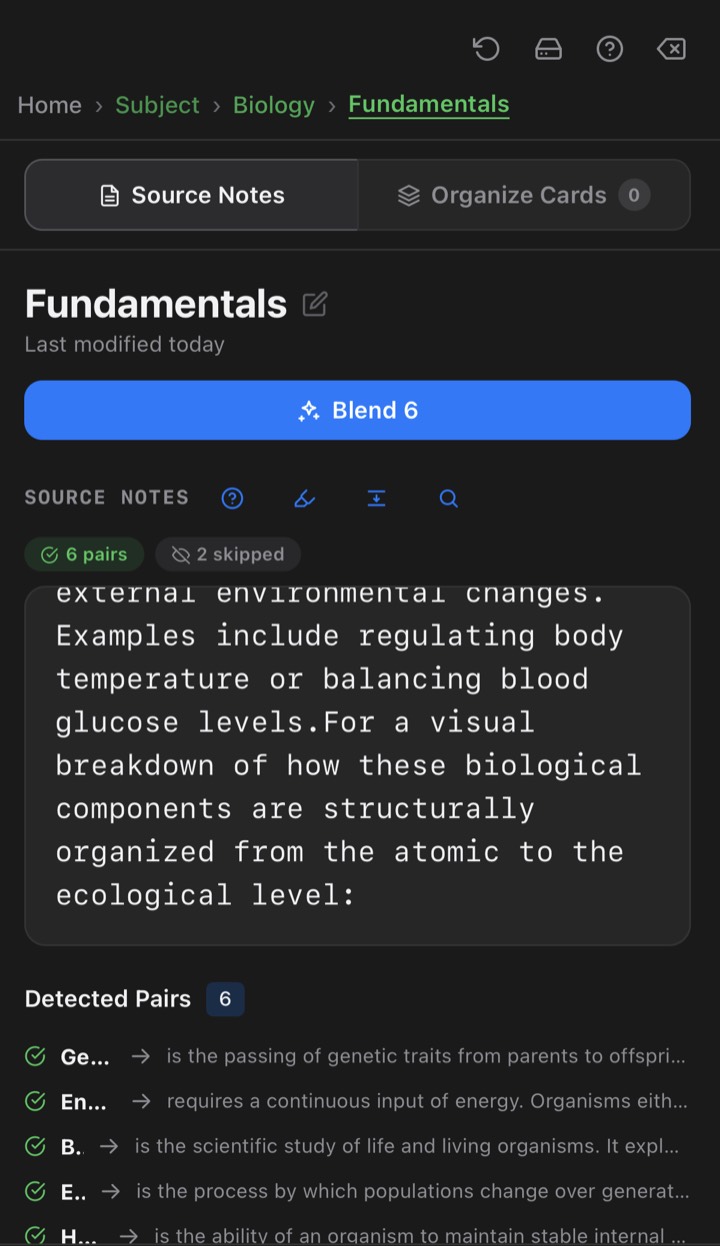
  1. 6This is Source Notes. Paste text from handouts, PDFs, websites, or AI tools. NoteBlend uses rules based on common textbook formats, not AI.

  2. 7NoteBlend finds term-and-definition pairs on its own — “Blend 6” means six cards are ready. Nothing found? Tap “?” to see which formats work.

  3. 8Tap the magnifying glass to edit in full screen and turn on highlights to see which terms were found.

  4. 9Below Source Notes is Skipped Content: text that didn't become a card because of its format, or because it isn't a term or definition.

  5. 10If a skipped line should be a card, tap “Add” and type its term and definition yourself.

  6. 11Tap “Blend”. The Organize Cards tab lists your cards — shuffle them, choose how many to practice, or add enumeration and classification cards.

CPractice your cards6 steps
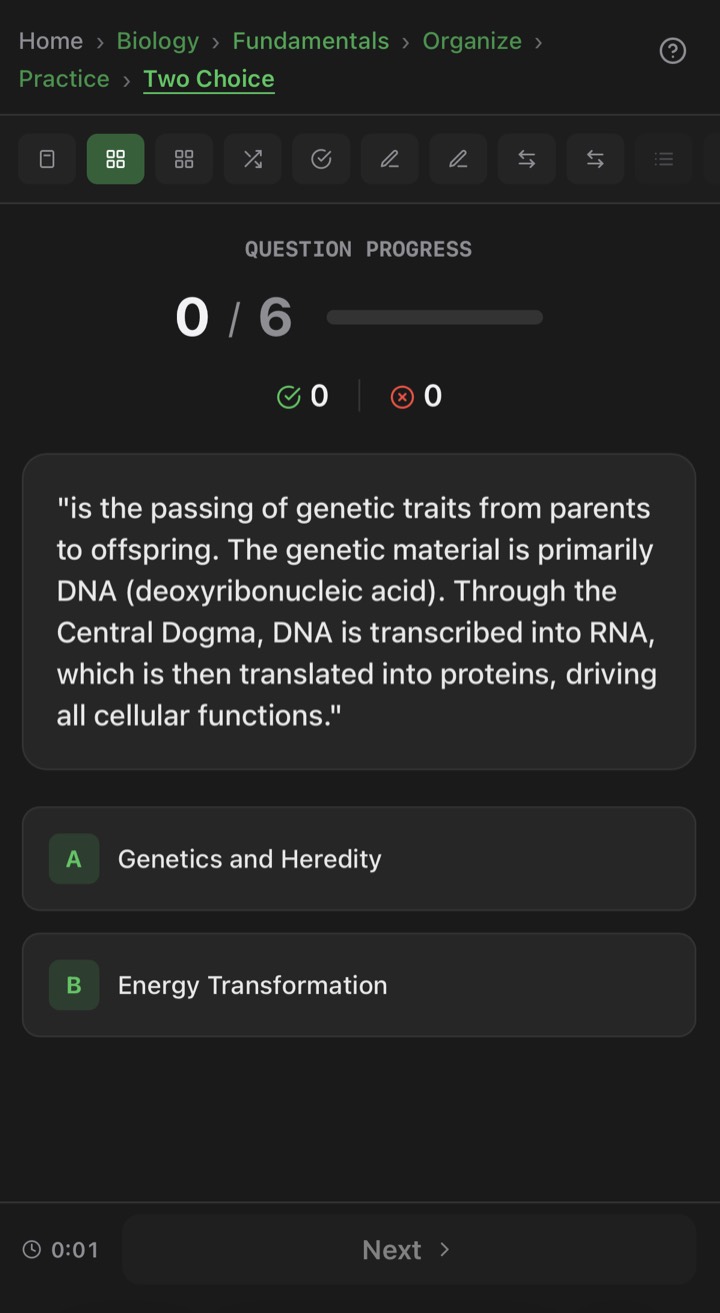
  1. 12Tap “Practice” and choose how to study. This is Two Choice: pick the correct term from two options.

  2. 13True or False: decide if the term matches the definition.

  3. 14Input Terms: read the definition and type the matching term, like an identification test.

    • Index Card
    • Multiple Choice
    • Two or Multiple
    • Input Definition
    • Mix Inputs
    • Match Column
    • Enumeration
    • Classification

    15Many more practice types. Pick the one that fits how you study.

  4. 16Your results are saved in Session History, which keeps your last 5 sessions.

  5. 17After blending, practice anytime from the Topic page: tap “Practice” and pick a type.

DAdd notes to a topic3 steps
  1. 18The Topic page has a Notes section for reminders or anything else that helps you study.

  2. 19Enter a title and a message. Type “@” to link one of your topics.

  3. 20Saved notes show up on the Topic page, so they're there every time you open it.

Your notes are already halfway to a reviewer.

Open NoteBlend, paste a page of notes, and see what it finds. It takes about a minute.

Opens in your browser. To use it offline, add it to your home screen.